
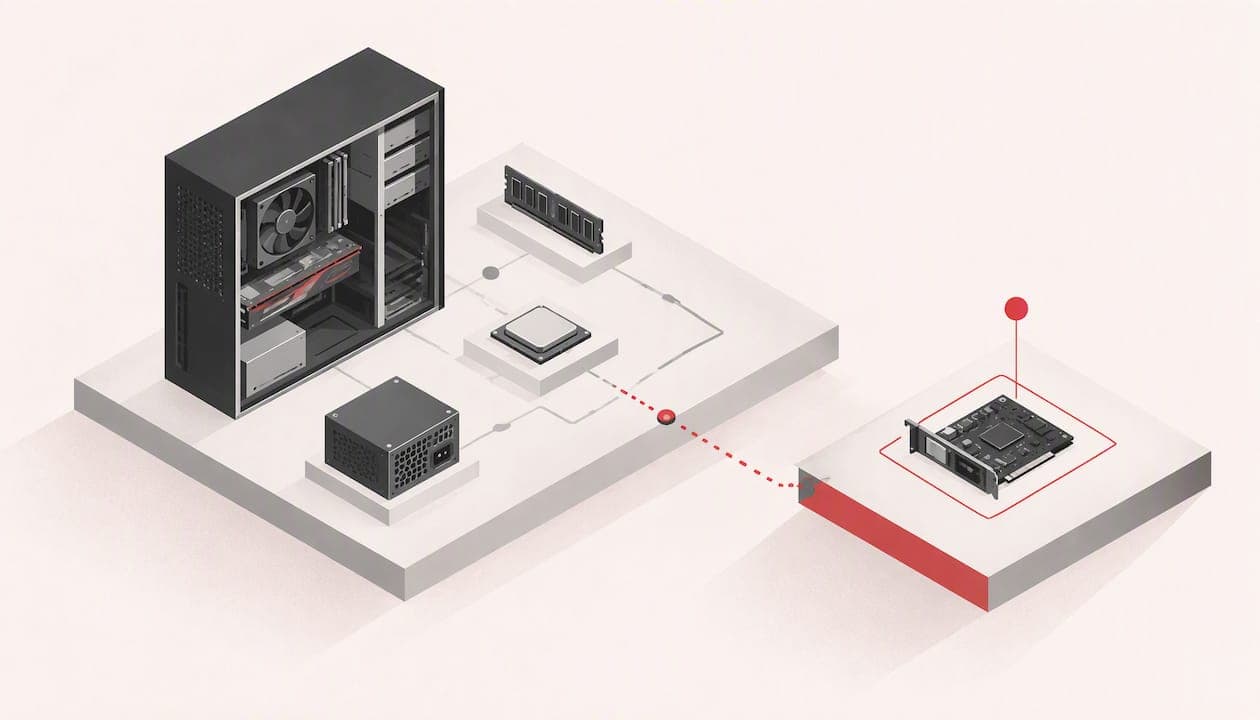
A computer diagnostic is a structured set of tests that finds out why a machine is slow, noisy, crashing or refusing to start, before anyone replaces a part or reinstalls Windows. You can run the first tests yourself in about ten minutes using tools built into most PCs. If those tests find nothing, or Windows will not start at all, a professional diagnostic goes deeper into hardware, software and the evidence between the two. This guide covers both routes, what each one checks, how long it takes and how to judge a repairer's process.
TL;DR
- A proper diagnostic checks hardware (storage, memory, battery, cooling, power, display, ports) and software (operating system errors, drivers, failed updates, malware).
- Start with your manufacturer's built-in test: a quick scan takes minutes, a full stress test can take two hours or more.
- Back up your data before any repair work, and never ignore a drive that is clicking or reporting errors.
- A professional should explain the findings and the cost, and you should approve them before the repair starts.
- If a test gives you a failure code, write it down. It saves time whoever fixes the machine.
Table of Contents
- What a computer diagnostic actually checks
- Run your own diagnostic first
- When self-testing is not enough
- What a professional fault diagnosis involves
- What a diagnostic costs and how long it takes
- Perspective: why plain answers matter more than clever tests
- Getting your computer looked at
- Before you hand over the machine
- FAQ
- Sources
What a computer diagnostic actually checks
Faults come from two families of cause, and a good diagnostic does not assume which one it is dealing with. One technical guide lists the physical checks as storage, memory, battery, cooling, power, display, keyboard, ports and networking. The software side covers operating system errors, failed updates, corrupted files, unwanted programs, driver conflicts and malware.
That split matters because the symptoms overlap. A laptop that freezes might have a failing SSD, a fan clogged with dust, a bad driver or a malware infection. Replacing the wrong part is the expensive way to find out which.
Here is how common symptoms map to the checks most likely to explain them. Treat it as a starting point, not a verdict.
| Symptom | Likely first checks |
|---|---|
| Slow, freezing, long boot times | Drive health (SMART data), free space, startup programs, malware scan |
| Random restarts or blue screens | Memory test, temperatures under load, driver versions, event logs |
| Loud fans, hot chassis, sudden shutdowns | Fan operation, dust, thermal paste, CPU and GPU stress test |
| Will not power on | Power cable and adapter, battery, power supply voltages |
| Wi-Fi drops or no network | Driver, adapter test, router comparison with another device |
| Battery drains quickly | Battery capacity report, background processes |
Run your own diagnostic first
If the computer still starts, a free self-test costs you nothing and often settles the question. Most major manufacturers include one.
Manufacturer tools
HP recommends running its Fast Test first. It covers disk read verification, video memory, wireless, CPU stress and battery, and normally takes about 3 to 5 minutes. If symptoms continue without a failure being reported, HP advises the Extensive Test, which adds a hard-drive self-test and can run for two hours or more. If Windows cannot start, the same tests are available from the UEFI menu before the operating system loads. HP also says its Windows tool can generate a 24-digit failure ID that you can quote to support.
Dell's route begins by identifying your exact machine, then opening diagnostics and choosing a quick, full or custom test. Dell states a quick test takes approximately 10 minutes, a custom component test around 20 minutes or more, and a full hardware stress test around 40 minutes or more. Some tests need you at the keyboard, for instance to confirm that a pattern appeared on screen.

Lenovo offers a Simple Scan and a Custom Scan, and its bootable UEFI diagnostics include tests for battery, CPU, display, fan, keyboard, memory, motherboard and storage, with quick and extended options.
Windows built-in checks
For software faults, Microsoft documents a two-step repair of damaged system files. Open Command Prompt as administrator, run DISM /Online /Cleanup-Image /RestoreHealth, then run sfc /scannow. The System File Checker looks for corrupted Windows files that can make the system malfunction. Microsoft's PC Health Check app gives a general overview of a Windows device and helps with performance problems.
Free third-party tools
If your machine is a custom build or a brand without its own tool, a general-purpose option exists. PC-Doctor Toolbox is free for personal use with a free account, supports up to five personal Windows 10 or 11 (64-bit) systems and asks you to opt in to sharing technical data. Read that consent screen before you click through.
How to read the result
- A test fails: note the component and the failure code or ID, take a photo of the screen, and stop using the machine heavily if the failing part is the drive.
- Everything passes but the fault persists: the cause may be intermittent, heat-related or in software. Run the extended test once, then move to a professional diagnostic.
- Windows will not start: use the UEFI tests if your manufacturer provides them, and do not keep forcing restarts, which can worsen a failing drive.
When self-testing is not enough
Built-in tools test components in isolation, usually on a clean, idle system. They are weaker at faults that appear only under particular conditions, and they cannot interpret an odd combination of symptoms. Book a professional diagnostic when:
- the manufacturer test passes but the problem keeps happening;
- the machine will not boot, or shuts down unpredictably;
- you hear clicking from a drive or smell burning;
- you suspect liquid damage or a failing power adapter;
- the computer holds business data you cannot afford to lose.
The last point deserves emphasis. If the machine runs your invoicing, customer records or an online shop, tell the repairer that at the start. It changes the order of work: protect the data first, then chase the fault.
What a professional fault diagnosis involves
Processes differ between workshops, but the sound ones follow the same logic as the scientific method. A well-known troubleshooting guide describes it as: identify the symptoms, form a theory of the probable cause, test it by changing one thing at a time, apply the fix, verify it works and document the result.
In practice that looks like this.
- Intake. The technician records what you noticed, when it started, what changed recently (an update, a drop, a spill) and how the fault affects your work. They note the device identifier and any visible damage, which protects both sides.
- Safe preliminary checks. Cables, power adapter, ports, vents, signs of damage. Some manufacturers' own service procedures begin with power-off checks of cables and power cords, then a restart while watching for error codes and beep codes.
- Reproducing the fault. If the problem comes and goes, the technician tries to trigger it, perhaps by loading the processor and graphics chip to see whether it appears when the machine gets hot.
- Targeted tests. These usually include a memory test, a drive health review using SMART data and filesystem checks, CPU and GPU load tests for heat and throttling, power supply voltage checks on desktops and a battery capacity check on laptops. One workshop describes this toolkit alongside event-log review, offline malware scanning, startup and service review and driver version checks.
- Reading the evidence. Manufacturer support tooling also gathers system information, drivers, logs, storage and SMART data, system-file integrity results and crash-dump analysis, saved in reports and log files. The skill is in connecting those results to your symptoms.
- Isolation. If the evidence is ambiguous, the technician swaps or removes components, or boots from an external system, to separate hardware from software.
- Findings and recommendation. You should receive the likely fault, the recommended repair, the cost and the timeline.
Notice the last step. In a professional workflow, repair begins only after you have seen the cost and timeline and approved them. If a repairer starts replacing parts before telling you what they found, that is a reason to ask questions.
Finding the fault versus finding the cause
One distinction from IBM's diagnostic documentation is useful for managing expectations. It separates problem determination, which is establishing exactly what is wrong and its effects, from problem-source identification, which is finding what caused it. Sometimes a technician can say with confidence that a motherboard has failed without being able to say why. A good diagnosis still recommends a sensible action in that case, and it says plainly what is certain and what is not.

Safety during testing
Some diagnostic work happens with the machine open and powered. The UK Health and Safety Executive's guidance on electrical testing says live work must control access to dangerous conductors, and its recommended precautions include temporary insulation, isolation transformers where practicable, a 30 mA RCD and secure support for any removed circuit board. You do not need to audit your repairer, but it is a fair sign when a workshop talks about safe procedure rather than just speed. For your own part, never open a power supply unit, and unplug a desktop before touching anything inside.
What a diagnostic costs and how long it takes
Expect quick diagnostics to cost a modest fixed fee or to be folded into the repair price. Two arrangements are common among UK repairers: a flat diagnostic fee that is credited or waived if you go ahead with the repair, and a fee that is payable regardless. Fast-turnaround options usually cost more than standard ones. Because fees differ from shop to shop and change over time, ask these questions before you hand the machine over:
- Is there a diagnostic fee, and is it deducted if I approve the repair?
- Will you quote the repair before starting it?
- How long will the diagnosis take, and will you contact me with the result?
- What happens to my data, and should I back it up first?
- If you find nothing, what do I pay?
Time depends on the fault. A dead battery or a full drive can be identified in minutes. An intermittent crash may need hours of stress testing or a day of observation. A repairer who gives a range and explains why is being more honest than one who promises an exact figure for a fault they have not seen.
Our own computer repair work covers diagnostics, repairs, cleaning and upgrades, and we do not publish a fixed repair price because the right figure depends on what is wrong. We would rather tell you the cost once we know.
Perspective: why plain answers matter more than clever tests
We build websites and online shops for small businesses and tradespeople, and we repair computers and consoles, so we see the same pattern from both sides. Owners rarely struggle with the technology itself. They struggle with not understanding what they are being told. A diagnostic report full of codes does nothing for someone who needs to know whether the machine will last another two years or whether a repair is worth paying for.
Our approach is the one we use for website quotes: you speak directly to the person doing the work, with no call centre in between, and the cost is explained in plain English before anything starts. For a repair that means three things. We tell you what we found and how we know. We tell you what it will cost and what the alternatives are, including when replacing the machine makes more sense than fixing it. And we do not treat a clean test result as a reason to say the problem does not exist.
One piece of advice we repeat often: if your computer holds business data, the first diagnostic you need is a backup. A failing drive can fail completely at any point, and no test result is worth more than the files themselves.
— Matt Ratcliff
Getting your computer looked at
If the self-tests above have not found the problem, or you would rather not experiment with a machine that runs your business, we can diagnose it. We handle computer repairs, console repairs and custom PC builds, and you can talk to us directly about the symptoms before you bring anything in. See the computer repair services on our main site to get in touch.
If the real trouble is a website that is slow, broken or out of date rather than the hardware behind it, our website support service covers that side of things.
Before you hand over the machine
A little preparation makes any diagnostic faster and cheaper.
- Back up what matters. If the drive is failing, copy the most important files first, and do not run repeated heavy tests on it.
- Write down the symptoms. What happens, how often, and what you were doing. Add anything that changed beforehand, such as an update, a drop, a spill or a new program.
- Note any error messages or failure IDs. A photo from your phone is enough.
- Bring the charger and any accessories involved in the fault. Power problems are often in the adapter, not the computer.
- Sign out of accounts where you can, and know your Windows password and any disk encryption recovery key.
- Say what the computer is used for. A business machine with customer records gets different priorities from a spare family laptop.
FAQ
How much does it cost to get a computer diagnostic?
It varies by repairer and by how urgent the job is. Some charge a flat fee that they waive or credit if you approve the repair, others include diagnosis in the repair price. Ask before you book, and ask whether you will get a quote before any work begins.
How do I run a full diagnostic on my computer?
Use your manufacturer's built-in tool: run the quick test first, then the extensive or full test if symptoms continue. HP says its Extensive Test can take two hours or more. For Windows file problems, run DISM followed by sfc /scannow as Microsoft describes.
Where can I get a free PC diagnostic?
Most laptop and desktop makers include a free hardware test in the UEFI menu or as a support app, and Windows includes System File Checker. A free general tool such as PC-Doctor Toolbox is available for personal use if your brand has none. Free tests are good at spotting clear failures but less so at intermittent faults.
Can a diagnostic find every fault?
Not always. A technician can usually establish what is failing and what effect it has, but the underlying cause is sometimes harder to pin down. A good report separates what is confirmed from what is likely and recommends a sensible next step either way.
Will a diagnostic erase my data?
A diagnostic should not change your files, but any hardware fault carries a risk of data loss, particularly with a failing drive. Back up first where you can, and tell the repairer if the data is important so they can prioritise protecting it.
Sources
- HP PCs: Testing for hardware failures
- HP PC Hardware Diagnostics
- How to run a Dell online diagnostic test
- Lenovo support diagnostics
- Lenovo Diagnostics UEFI user guide
- Using System File Checker in Windows
- How to use the PC Health Check app
- PC-Doctor Toolbox
- Computer diagnostics that find the real problem
- What happens during a PC diagnostic appointment
- HP diagnostic guide for authorised support
- ThinkStation P8 Hardware Maintenance Manual
- HSE: Safety in electrical testing
- IBM i5/OS diagnostic tools
- Troubleshooting tips and techniques
- Computer repair shop management guide